Getting started
Your first CodeScout project in 5 minutes
A step-by-step beginner guide: create your account, install CodeScout on Windows, open your project, and run your first task with an AI coding agent.
· 3 min read
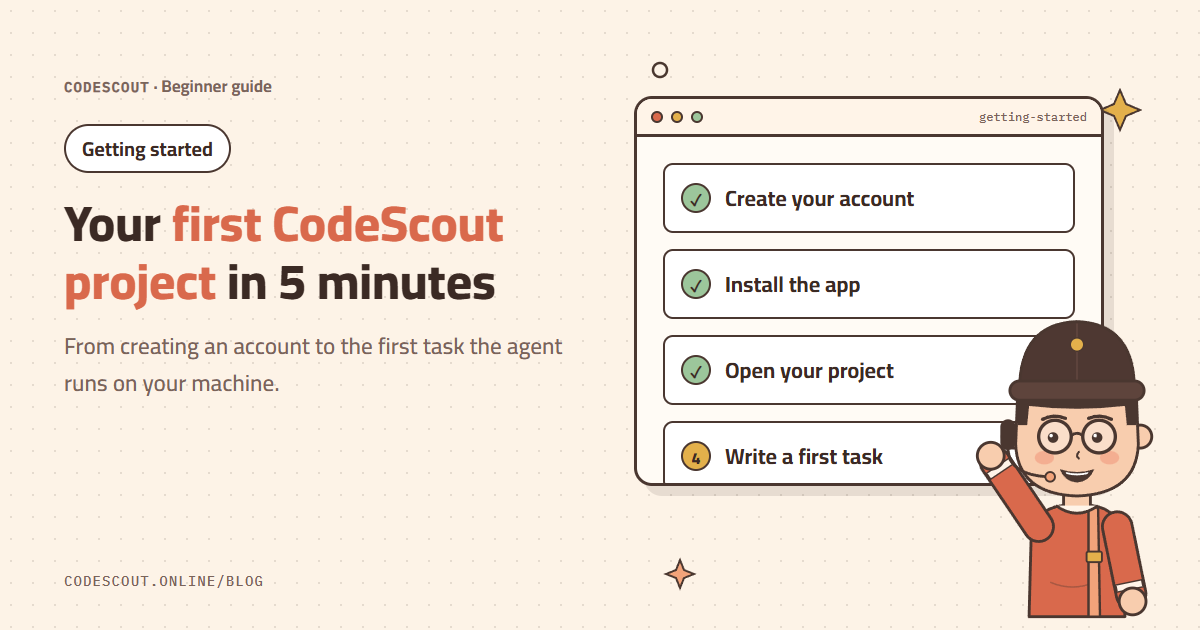
If you are new to AI coding agents, the idea is simple: instead of writing every line yourself, you describe what you want in plain language. The agent reads your project, plans, writes code, runs commands and checks the result while you watch every step. In this guide you will set everything up and run your first task in about five minutes.
1. Create your account
Go to the sign-up page and create an account with your email, Google or GitHub. A 6-digit confirmation code arrives in your inbox; enter it and your account is ready.
2. Install the app on Windows
- 01Open the download page and click Download for Windows.
- 02Run the installer and follow the wizard. It installs for your user only and needs no administrator rights.
- 03If Windows protected your PC appears, click More info and then Run anyway. This is a normal warning for new apps.
3. Sign in and add credit
In the app click Sign in. The website opens in your browser; approve the connection and return to the app. Then top up from the credits page or redeem a code if you have one. You never need API keys of your own: CodeScout routes every request to the right model.
4. Open your project and run a first task
Choose Open folder and pick your project’s root folder. The best first task is read-only, so you can see how the agent thinks without it changing anything:
Explain the structure of this project and suggest three improvements without changing any file.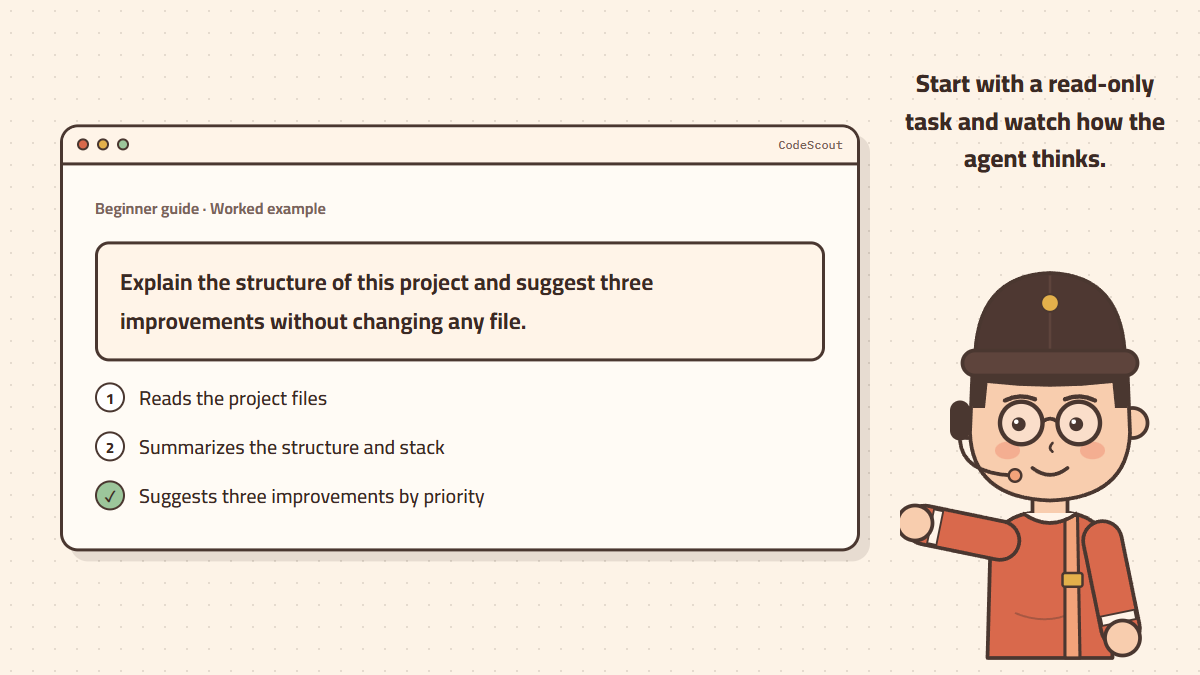
You will see the agent open the files one by one, summarize the technologies and how the code is organized, and then list three suggestions ordered by priority. If you like one, ask for it in a new message.
Pick the right permission mode
- Read only: best for your first try; the agent asks before any change.
- Write in workspace: edits project files only and asks before anything outside them.
- Full access: for projects you trust and have a backup of.
Put your project in Git before you start, so you can review every change the agent makes and undo it easily.
What’s next
Once you are comfortable, try bigger tasks: a new page, a bug fix, or connecting your project to WordPress or Supabase. The clearer your request, the faster and more accurate the result. Read 7 rules for prompts that get better results to start right.