WordPress
Build a WordPress store in 10 minutes
Set up an online store on WordPress and WooCommerce with a few plain-language requests: plugin, products, pages and currency, with automatic backups.
· 3 min read
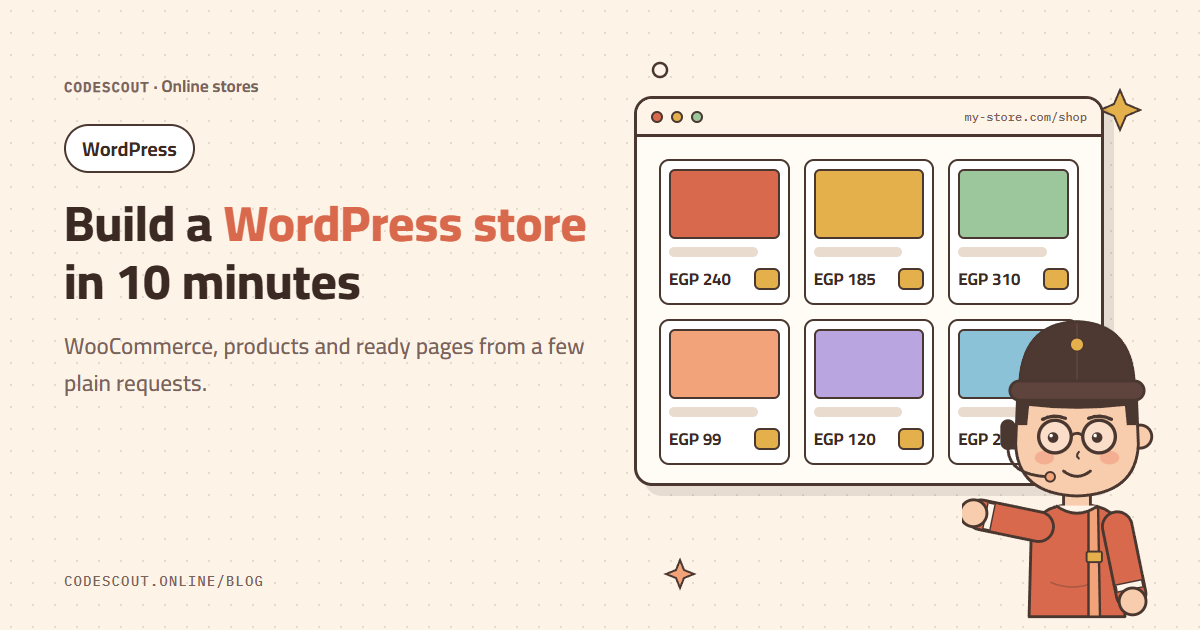
Launching a WordPress store used to mean hours of settings, plugins and pages. With CodeScout and the WP CodeScout Connector plugin you can reach a store that is ready to test in about ten minutes, using requests written in plain language.
Before you start
- A WordPress site running on https (or a local site on localhost for testing).
- The WP CodeScout Connector plugin installed and active, and the site connected to your project. If not yet, follow connect WordPress safely.
- In the connection settings inside the plugin, enable the plugins, content and backups permissions.
Request one: lay the store’s foundation
Write one clear request that covers everything:
Install and activate WooCommerce, set the currency to Egyptian pound,
create 6 sample products for a coffee roastery with prices and short
descriptions, and add an "About us" page and a "Refund policy" page.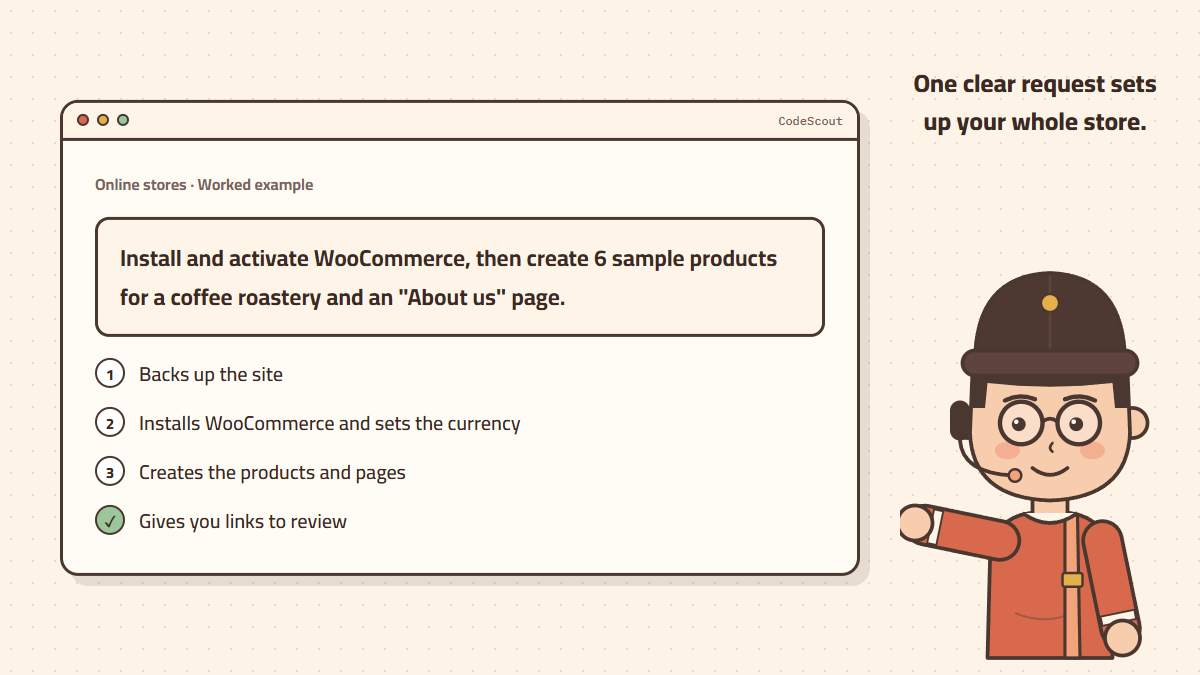
You will see the agent take a backup first, then install WooCommerce and configure it, create the products and pages, and finally give you links to review the result.
Request two: make the store look right
Make the product pages show two columns on mobile, rename the
"Add to cart" button to "Add to bag", and use brown and orange buttons.
Design changes belong in a child theme so they survive theme updates. If there is no child theme yet, ask the agent to create one first.
Request three: payment and shipping
- Enable cash on delivery for a quick start.
- Define shipping zones and rates: "Cairo and Giza 50 EGP, other governorates 80".
- Online payment gateways need your account with the payment provider; the agent can install the plugin and show you where to paste your keys yourself.
Never paste payment gateway keys or passwords into the chat. Enter them yourself in the WordPress dashboard.
Review before launch
- 01Open the store on your phone and check that every page looks right.
- 02Place a full test order from the cart to the thank-you page.
- 03Ask the agent: "Review the store settings and tell me if anything is missing before launch."
Now you have a store ready for your real products and photos. If you need product shots or a homepage banner, the agent can generate images right in the chat.